Set Chrome browser default camera
You might need to set the browser's default camera, if the camera selected in an eVisit is not the expected default when using Chrome.
Google Chrome has a default camera setting and it will automatically use this selection for video calls and override the default set for your. You need to set Chrome’s default camera to the one you want to use.
Note: If you use an external camera (for example, an accessory camera connected to your laptop), be sure to have it connected before you set a default or begin your eVisit.
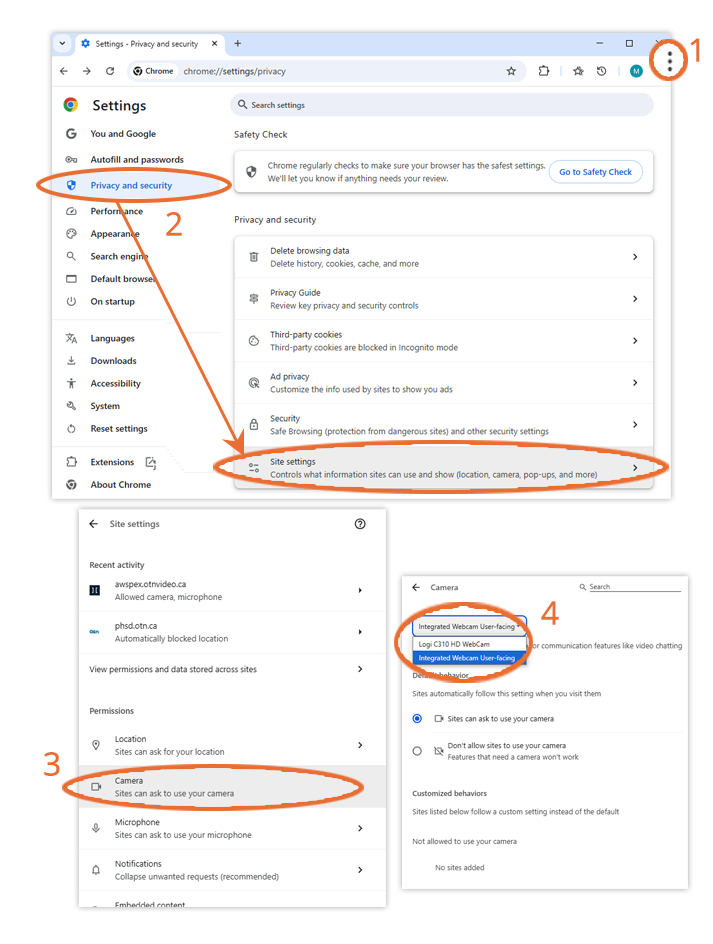
- Select the three vertical dots in the upper right-hand corner of Chrome.

- Select Settings > Privacy and security > Site settings.
- Scroll down and select Camera.
- A drop-down menu listing your available cameras appears at the top of the page.
- Select the camera you want to use as your default.
- Chrome automatically sets this camera as the default.
- Close the browser tab.
- If you are in an eVisit, refresh your eVisit browser screen and your preferred camera should now be active.
If you are not in an eVisit, the next time you join an eVisit your preferred camera will be the default.