
If this is your first video call, the video window opens with "picture-in-picture" mode – with the other caller in the main screen and your image as a small image in the upper right corner. (Or if you are the only participant, you will see a "Waiting for the host" image along with your self-view.)
When you are in a video visit, there are different controls and actions available.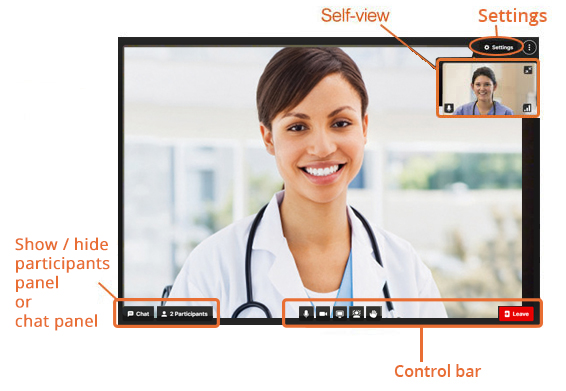
Controls include: tool bar controls, in-call controls, self view, participants panel, chat panel, and settings.
Tool Bar Controls
Click a control button to turn the option on or off.

|
Participants - Show or hide the participants panel. |

|
Chat -Show or hide the chat panel. |

|
Raise hand -Turns on or off an indicator to let others in the meeting know that you want to speak. Appears only while the videoconference is in session (that is, while the host has joined). |

|
Share screen - Turns on or off sharing content with other participants. To view the shared content in the larger panel, click the small image of your shared content. |

|
Expand While sharing content, expand or contract the main video window. Appears only while screen sharing is in use. It does not affect what others see. Other participants see the shared content in their main video panel. For example, while sharing, click the small image (to move your shared content to the larger video panel) and then click the expand button. This lets you see a larger view of your shared content. |
In-call Controls
Click a control button to turn the option on or off.
 You've muted your microphone. Or the host has muted you.
 You've put yourself in privacy mode. (You see/hear others but they cannot see you.)
Self-view Image
The self-view window shows the video image that you are sending to other participants.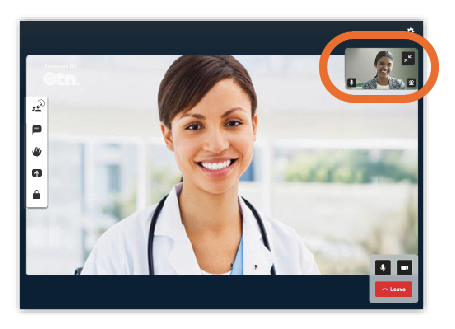
By default, the window appears at the top right of your screen, but you can move it or hide the video. To move the self-view image, click inside the self-view and drag to a new location.
Click a control button to turn the option on or off.

|
Hide self-view (appears when you move the cursor over the self-view image). Note: When you hide your self-view, you are still sending video to other people in the meeting. When you hide your self-view, a mini control bar appears at the top-right of the video window. To show your self-view, click |

|
Microphone - Toggle between turning your microphone on and off.
|

|
Background effects - Open a panel where you can change the background of your video image. None: The default background effect. The background appears as it is without any effect applied. Blur*: Blurs the background which can reduce distractions in your video broadcast. Replace*: Change your background to an image of your choice. To upload your own image, click the + button and use your computer’s file explorer to locate and select a file.
*Note: Blur and Replace background effects use a lot of processing power which can negatively affect your video quality. |
 in this mini control bar.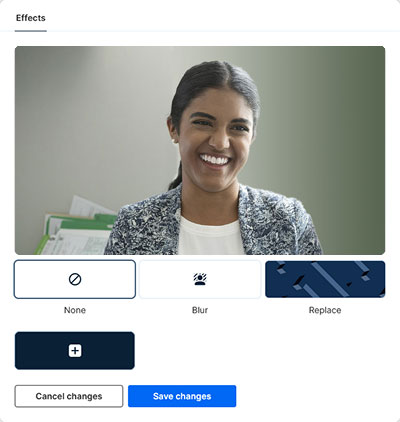
Participants Panel
The Participants Panel lists everyone in the video visit.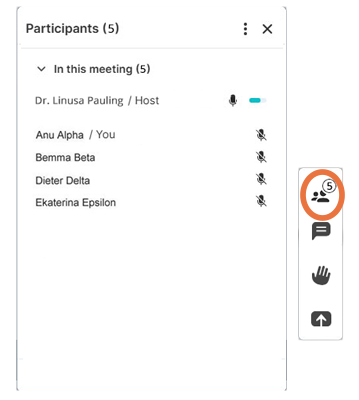
To show or hide the Participants Panel, click in the tool bar.
Within the Participants panel, participants can appear with the following icons next to their name:
 participant has muted themselves
 participant has been muted by the Host
 participant is not sending any video
 participant is sharing their screen
 participant is currently speaking (or sending audio).
Chat Panel
The chat panel lets you send and receive messages in the group chat.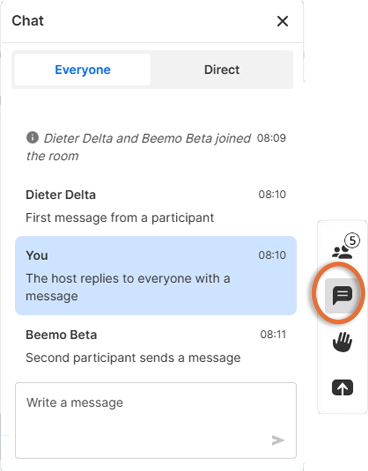
To show or hide the Chat Panel, click  in the tool bar.
Settings
The Settings menu at the top right of the screen lets you adjust your personal settings before or during a call.
To view the Settings panel, click  in the top right of the video window.
After the Settings panel has opened, to cancel or hide the panel without changing anything, click anywhere outside the panel.
Video and Sound
Shows the currently selected devices and lets you change devices for speaker, microphone, and camera.
The green bar under the self-view shows your microphone usage. It moves when your microphone detects sound.
Test your sound lets you check that the selected speakers are working properly.
Noise suppression: Turned off by default. Turn on to reduce the volume of non-speech background noise in the audio you are sending to the videoconference.
Quality
Controls the amount of bandwidth you will use for the call.
If you are on a cellular or slow Wi-Fi connection, or if you experience low-quality video, you can change this to a lower setting.
Additional settings
Browser close confirmation.
Show authenticated participants.
Media statistics
Displays diagnostic information about your call, such as the codec being used, incoming and outgoing audio and video bit rates, and how many data packets have been lost and received.
Languages
Lets you select the language used within the app.
Accessibility
Always display call controls. By default, call controls disappear after a few seconds of inactivity, to avoid clutter on the screen. When this option is enabled, call controls remain on the screen at all times.
Disable app shortcuts.
Download log
Downloads a file that contains information about the last call. See Download log file on page 3.
About
Shows the version of the app currently in use.
Send feedback
Open a new browser tab at a web site where you can provide feedback.